User guide

The SyncTrans guide:
from first launch to a finished meeting record

This is the task-oriented walkthrough for SyncTrans: Live Translator. It follows one path — install, choose an engine mode, set the languages, run a conversation, hear it read aloud, export the record — then goes deeper on each feature and ends with fixes for the problems people actually hit. For the full feature reference, see the Features page.

Applies to SyncTrans 1.0.0 · macOS 14+ · Apple Silicon for on-device mode

Getting started

From download to the first translated sentence

The whole path takes a few minutes on the cloud engine. On-device mode adds a one-time model download.

1. Install

Download the DMG, open it, and drag SyncTrans into Applications. The app needs macOS 14 Sonoma or later and a microphone. On-device mode additionally needs an Apple Silicon Mac (M1 or newer); cloud and custom-service modes are the fallback everywhere else.

If macOS blocks the first opening, right-click the app and choose Open — the build is signed and notarized, so this is a one-time confirmation.

2. First launch: the five-step setup

The first time you open SyncTrans, a short setup walks through five screens. Every step has a working default and the whole thing can be skipped — nothing it asks is final, and every choice reappears later in Settings.

  1. 1Languages. Pick the main language you will speak and the languages the room needs to hear. Fifteen conversation languages are available.
  2. 2Plan. Choose how translation should work: the managed cloud, on-device models, or a third-party service you connect yourself. The next section explains the choice.
  3. 3Display and audio. Single screen or dual screen, which microphone to listen to, and whether translations go to both ears or one each.
  4. 4Model combination. Pick a translation combination and a speed-versus-accuracy preference. On-device choices are measured against your Mac before anything downloads.
  5. 5Ready. The app connects, claims free starting credit for a guest session if you chose the cloud, and starts the service. Registering an account afterwards adds its own free grant.

3. The daily loop

Once setup is done, a session is three actions: check the language pair in the toolbar, press Start translation (⌘R), and talk. The macOS microphone prompt appears the first time audio is captured — allow it once and it never asks again. Translations appear as each sentence completes, and pressing the same button (now Stop, ⌘.) ends the session. Everything said is already saved to the current project.

Engine modes

Choosing an engine mode

Recognition, translation and read-aloud are three services inside SyncTrans; the engine mode decides where they run. That choice is the entire privacy story, so it is the second screen of setup rather than a buried preference. You can change it any time in Settings → General, and each project remembers the mode it was using.
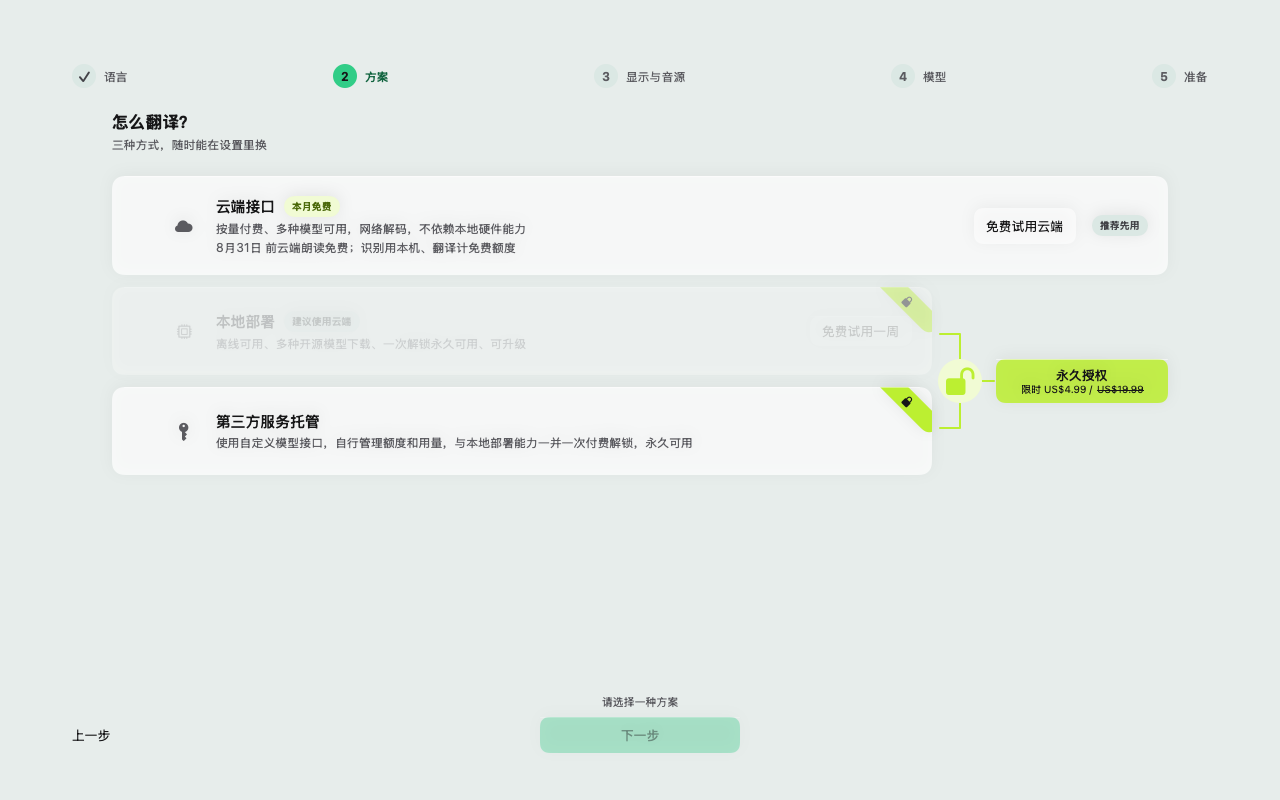
The SyncTrans setup screen that asks how translation should work, offering the cloud service, local deployment and third-party services
The engine choice is one screen of first-run setup, and the same three options live in Settings → General afterwards.

On-device privacy

Recognition, translation and speech run inside the app itself, on open models you download once. After the download it works with no network at all. Choose a model set — lightweight, balanced, or high quality — and the app tells you before downloading whether your Mac has the memory to run it. The lightweight set asks for roughly 16 GB of memory and 12 GB of free disk. Downloads are encrypted in transit and integrity-checked file by file.

The first session after installing a model set starts slowly — loading the recognition model alone takes about 30 seconds — and is fast from the second session on.

Worry-free cloud

Nothing to download and nothing to configure: audio is processed as it streams and translations come back immediately. A guest session starts with free credit and no form, so you can hear it work before deciding anything; registering an account adds another grant. The service keeps usage records for billing — provider, duration, charge — not the content of the conversation.

Recognition can stay on your Mac even in cloud mode, so only the translation goes out. If cloud recognition credit runs out mid-conversation, SyncTrans switches to on-device recognition instead of stopping.

Custom service

Point translation at OpenAI, Claude, Gemini or any compatible provider — including one you host yourself. Read-aloud can use your own speech service independently. API keys live in the macOS Keychain, never in a preferences file, and content only ever reaches the services you entered yourself.

Setting this up is one form in Settings → General: pick the provider, paste the key, and the advanced fields (request format, base URL, model ID) stay folded away unless you need them.
Languages

Languages and speakers

Set the language pair

The language popover in the toolbar edits the same preference as Settings → Language: one main language and up to seven targets running at once, each with its own translation. The pickers only ever offer combinations the current engine and models can actually recognize and translate, so an unavailable pair is hidden rather than failing mid-sentence. If a provider or model change removes a language you already chose, it stays visible with an explicit warning instead of vanishing.

Two speakers on one microphone

For a face-to-face conversation across one laptop, set a second language for the microphone in Settings → Sound. Completed turns are then attributed to one speaker or the other by the language they were spoken in — no second microphone, and nobody has to press a button before talking. The two languages must differ, and each speaker can be given their own read-aloud voice so the transcript is easy to follow by ear as well as by eye.

Daily use

Running a conversation

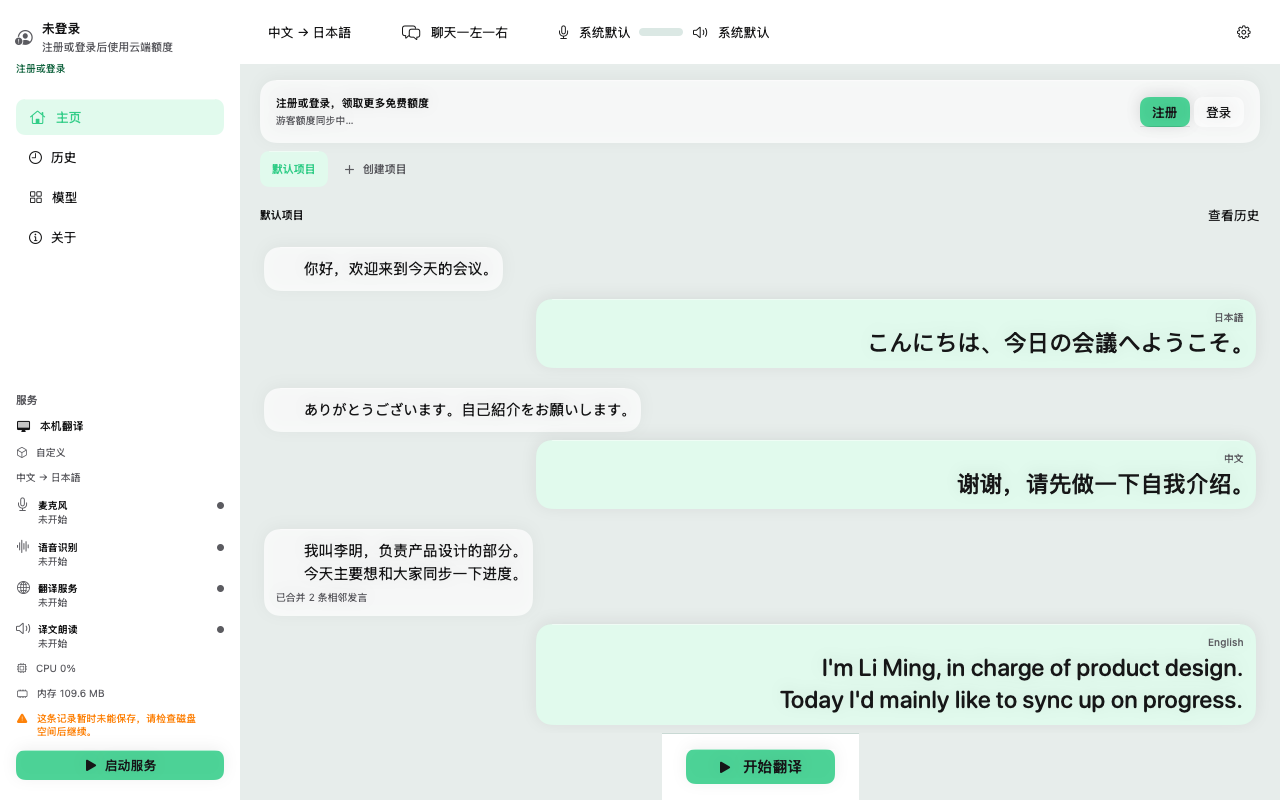
The SyncTrans main window in the chat layout, with the sidebar, toolbar and start button above a demonstration conversation
The main window during a conversation. The sidebar and the status capsule both report the state of microphone, recognition, translation and read-aloud.

Start, watch, stop

The toolbar button is the one control that matters: Start translation (⌘R) begins capture, and while models load the button shows staged progress. While the session runs, incomplete sentences appear as a dimmed draft line that is replaced by the committed turn a moment later — drafts are never translated and never enter the history. If a turn is dragging, the complete current sentence button at the end of the draft line (or ⌘Return) commits it immediately through the same pipeline. Stop with the toolbar button or ⌘.; clear the visible conversation with ⇧⌘⌫.

Read the status capsule

The status capsule in the toolbar answers one question — ready, needs attention, or not started. Open it and you get the same four readiness rows the sidebar shows — microphone, speech recognition, translation service, read-aloud — each with a repair button when it needs something. When a conversation stalls, this is the first place to look: it tells you which of the four stages is at fault instead of leaving you to guess.

A red or amber row is paired with the action that fixes it — granting a permission, choosing a model set, signing in — rather than a bare error message.

Keyboard shortcuts worth keeping

  • ⌘R — start translating
  • ⌘. — stop
  • ⌘Return — complete the current sentence now
  • ⇧⌘⌫ — clear the conversation
  • ⌘1 / ⌘2 / ⌘3 — switch layout
  • ⌘, — settings

Read-aloud

Hearing the translation

Every translated turn can be read aloud in a natural voice. In on-device mode the voice runs on your Mac with the rest of the pipeline; in cloud mode it uses the managed speech service; with a custom engine you can point read-aloud at your own speech service.

Choose voices by name

Voices are chosen from a picker in Settings → Read-aloud — by name, with a preview button, never by typing an identifier. You can set a default voice, override it per target language, and pin a voice per speaker so two people sharing one Mac always sound like themselves. Previews play a fixed sample sentence per language, so two voices are always compared on the same line.

Left ear, right ear

Split-channel output assigns each language to the left ear, the right ear, or both. Two people sharing one pair of headphones each hear only the translation meant for them, and because the ears are separate playback lanes, both translations can speak at the same time instead of queueing. With exactly two target languages the left/right split is the default; with any other number everything starts in both ears until you change it.

Voice transfer, off by default

Voice transfer can carry the speaker's own voice into the read-aloud. It is off by default, and the switch in Settings says plainly why: turning it on sends the speaker's voice segment with the request to the speech service as a voice reference. Leave it off for sensitive conversations.

Screens

Layouts and dual-screen mode

Three layouts, one conversation

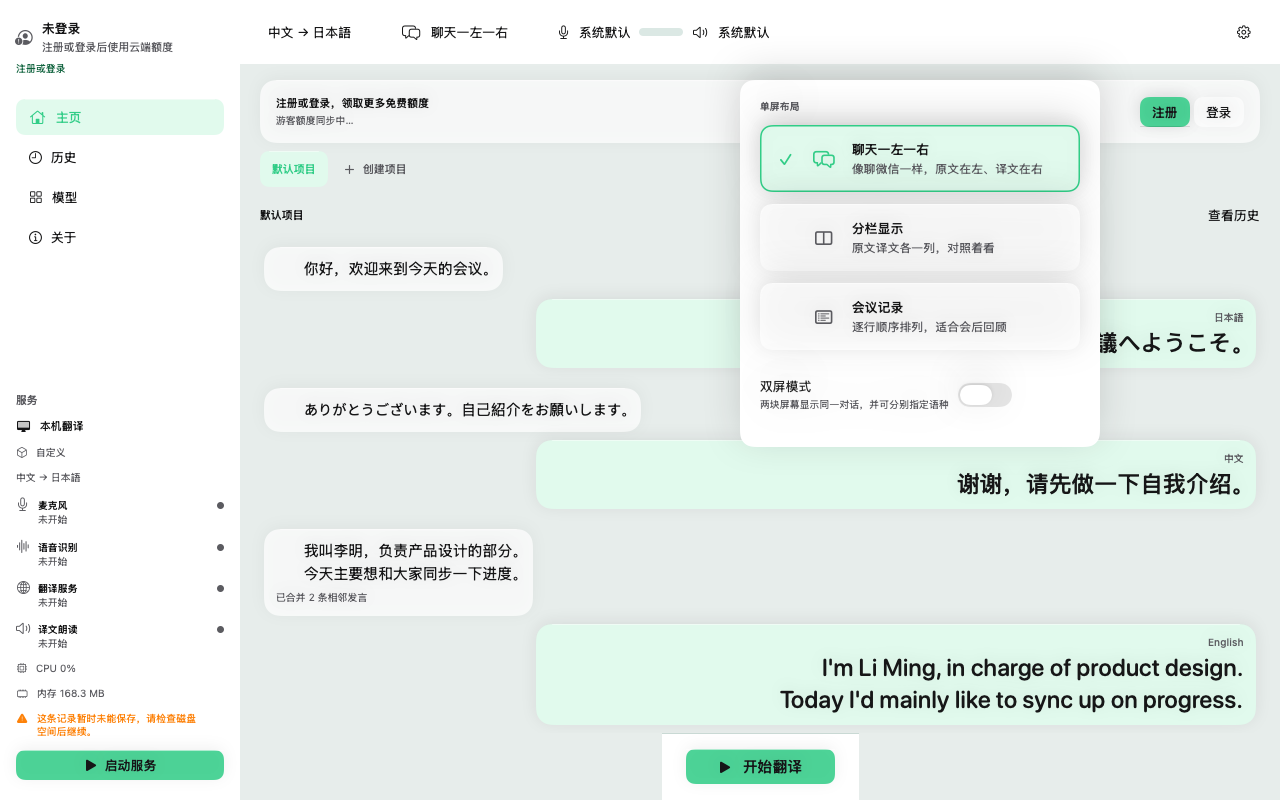
The same session record renders three ways, switchable mid-conversation from the toolbar or with ⌘1, ⌘2 and ⌘3 — nothing is lost when you switch.

  • Chat left and right (⌘1) interleaves both languages like a messaging app. Use it while people are actually talking.
  • Columns (⌘2) aligns original and translation turn for turn. Use it when you understand some of the other language and want to check the translation rather than take it on faith.
  • Meeting notes (⌘3) is every line in the order it was said, original and translation together — the closest match to what an export looks like afterwards.

Dual-screen conversation mode

With a second display attached, switch the toolbar from single screen to dual screen and SyncTrans opens a second window for one chosen language. Drag it to the other display, make it full screen, and each person reads the screen meant for them. Each window remembers which physical display it belongs to, so the arrangement survives being unplugged and set up again elsewhere. If the second display disappears mid-meeting, the app falls back to the single-window layout instead of stranding a window.

The display popover in the toolbar holds all three layouts, the dual-screen switch and the per-language window menu — everything reachable mid-conversation without opening Settings.

The SyncTrans display popover with the three layout choices and the dual-screen mode switch
Layouts, dual-screen mode and window settings live in one toolbar popover.

Records

History, search and export

Projects keep conversations apart

Every turn is written to a project as it happens, in both languages, in order. Use one project per client, per recurring meeting, or per trip: each project remembers its own languages, engine mode and layout, so reopening one puts you back in exactly the setup that worked. Search runs across originals and translations together, within one project or across all of them, and lands on the exact turn a half-remembered sentence came from.

Fix the record, not the translation

Got a name wrong? Individual turns can be corrected, merged or split after the fact. An edit is saved to the history only — it never quietly re-runs the translation behind your back, so the record you export is the record you approved.

Three export formats

Export the current conversation, everything in a project, or just the sessions you select:

  • Plain text (.txt) — original and translation turn by turn, ready to paste into an email or a report.
  • Parallel Markdown (.md) — each turn with its speaker, its time and every language side by side; minutes that drop straight into a notes app or shared doc.
  • Subtitles (.srt) — a timed subtitle track built from when each turn was spoken, with every language in one file, a single language, or one file per language.

Records live on this Mac and are never uploaded — making a file uploads nothing.

Quality

Glossary and context

Lock the words that matter

Translation fails first on exactly the words a meeting turns on: product names, people's names, internal jargon. The glossary in Settings → Translation takes a source term, a fixed rendering for every language you have enabled, and an optional note — "person's name, do not translate" is the one people write most. Locked terms come out the same way for the whole conversation instead of being reinvented on every turn.

Let translation remember the last few turns

Each turn can be translated with the previous completed turns in view — you choose how many, from none up to a dozen, with three the recommended setting. That context is what keeps pronouns attached to the right person and lets a one-word answer like "yes" land against the question it belongs to. Translating one sentence at a time in isolation is where live interpreting usually falls apart.

Troubleshooting

When something is wrong

The fixes for the problems people actually report, in the order they usually come up.

SyncTrans cannot hear the microphone

The first capture triggers the macOS permission prompt; if it was dismissed or denied, the session cannot hear anything. SyncTrans shows the denial in the status capsule and as a banner above the conversation with an Open Sound Settings button. You can also fix it by hand: System Settings → Privacy & Security → Microphone, then enable SyncTrans. Afterwards confirm the right input is selected — the microphone popover in the toolbar lists every input with a live level meter, so you can see the room mic react before anyone starts talking.

The status capsule says "needs attention"

Open the capsule and read the four rows: microphone, speech recognition, translation service, read-aloud. The amber or red row names the stage at fault and carries the repair action for it — grant a permission, pick a model set, sign in, or top up credit. The sidebar reports the same four states during a session, so a stall is always attributable to one stage rather than a mystery.

On-device mode is slow to start, or a model set is unavailable

The first start after installing a model set loads the recognition model into memory, which takes about 30 seconds; later sessions start much faster. If a set is greyed out, your Mac does not meet its measured memory floor — the app checks the hardware before offering a set rather than letting you download something that would swap. The lightweight set needs roughly 16 GB of memory and 12 GB of free disk. If a download is interrupted, start it again from Settings → General; every file is integrity-checked before it is used, so a partial download can never run.

Cloud translation stopped and mentions credit

Guest sessions and trials both run on free credit, and when it runs out a banner appears with a direct route to Settings → Account. Registering an account claims another free grant on the same Mac, and the account page shows the remaining balance and usage. One useful fallback: if only cloud recognition credit runs out mid-conversation, SyncTrans switches recognition to the on-device engine instead of stopping the session.

A language is missing from the picker

Pickers only offer languages the current engine mode and models can actually recognize and translate, so a missing entry usually means the current engine cannot do that pair. Switching engine mode recomputes the choices immediately. A language you already chose that becomes unavailable stays visible with a warning rather than disappearing silently.

Where are my conversation records?

In the project history, on this Mac. History is written locally in every engine mode and is never uploaded; searching it, editing it and exporting it all happen offline. Deleting a project deletes it from the Mac — there is no server copy to recover it from.

Something not covered here? Send us feedback →

SyncTrans

Direct download

Start translating on your Mac

Open the DMG and drag SyncTrans to Applications — ready in under a minute, with free starting credit on the cloud engine.

Download SyncTrans 1.0.0

macOS 14+ · Apple Silicon · Version 1.0.0