SyncTrans listens to a conversation, shows the translation as it happens, and reads it aloud. What makes it different is where that work happens: entirely on your Mac, in a managed cloud, or through AI services you configure yourself. You pick, and you can change your mind later without losing anything.
Version 1.0.0 · macOS 14+ · Apple Silicon · What's new →
Three engine modes
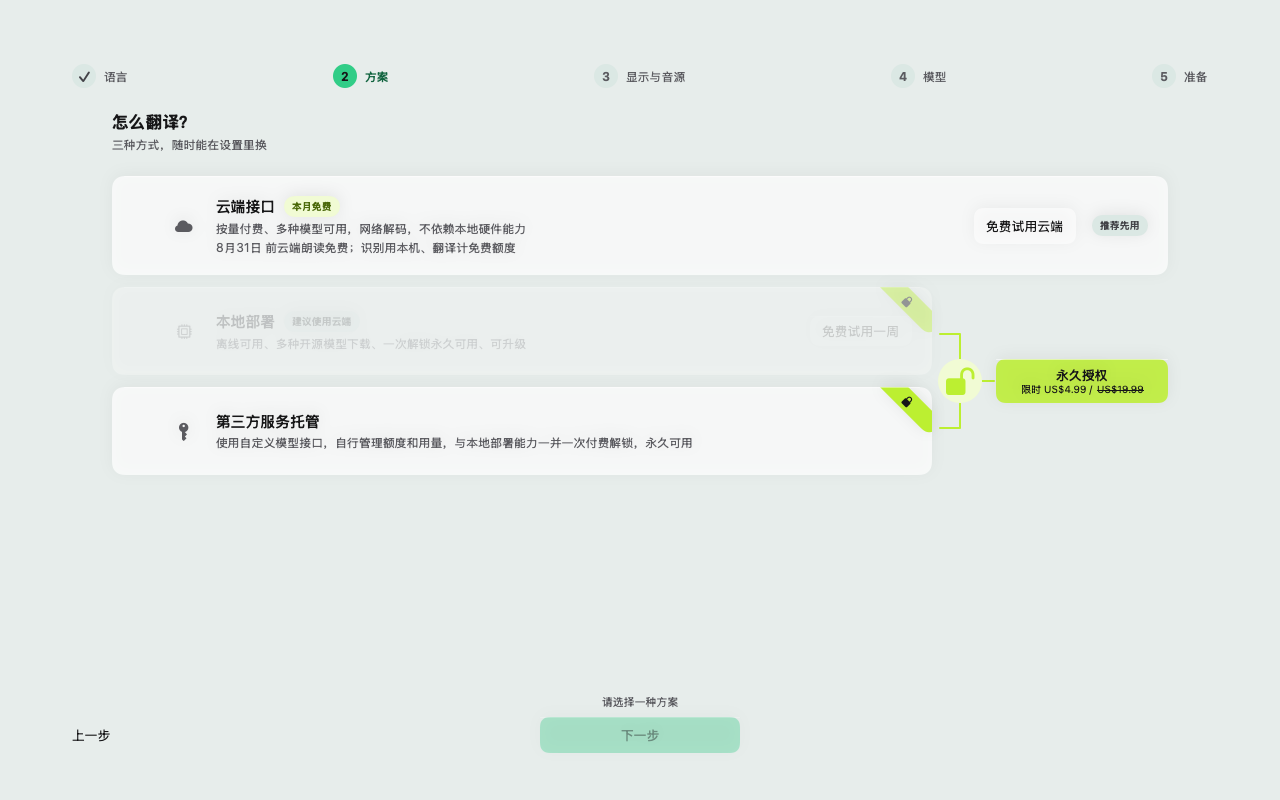
Recognition, translation and read-aloud are three separate services inside SyncTrans. The engine mode decides where they run, which is the entire privacy story, so the app asks you about it on the second screen of setup instead of burying it in a settings pane.
Recognition, translation and speech run inside the app itself, on open models you download once. Nothing else is involved — the conversation has nowhere to go but your own screen.
The fastest way in: nothing to download, nothing to configure, and no dependence on how much memory your Mac has. Audio is processed as it streams and the servers keep usage records rather than what was said.
Point the translation at an AI provider you already pay for, or at something you host yourself. SyncTrans becomes the interface; the account, the quota and the data-handling terms stay yours.
A privacy claim is only worth as much as the mode you are actually in, so here is the plain version for each of the three:
On-device: recognition, translation and read-aloud never leave this Mac. Nothing about the conversation is sent anywhere, because in this mode the app makes no request that carries it.
Cloud: audio is processed in real time as it arrives. Usage records — provider, duration, charge — are kept for billing; the source text, the translated text and the raw audio are not persisted by the service.
Your own services: content goes to the services you connected and to nobody else. Their terms apply, not ours — which is exactly the point of choosing them.
In all three modes the transcript history is written to your Mac and is never uploaded.
Face to face
A translator that only fills one screen makes everyone crowd around it. SyncTrans splits its output instead — across two displays, and across the two ears of a single pair of headphones.
Switch the toolbar from single screen to dual screen and a second window opens for one chosen language. Drag it to the other display, full-screen it, and your guest reads their own language while you keep the working view. Each window remembers which physical display it belongs to, so the setup survives being unplugged and set up again somewhere else — and if that display disappears mid-meeting, the app falls back to the single-window layout you were using before rather than leaving a window stranded.
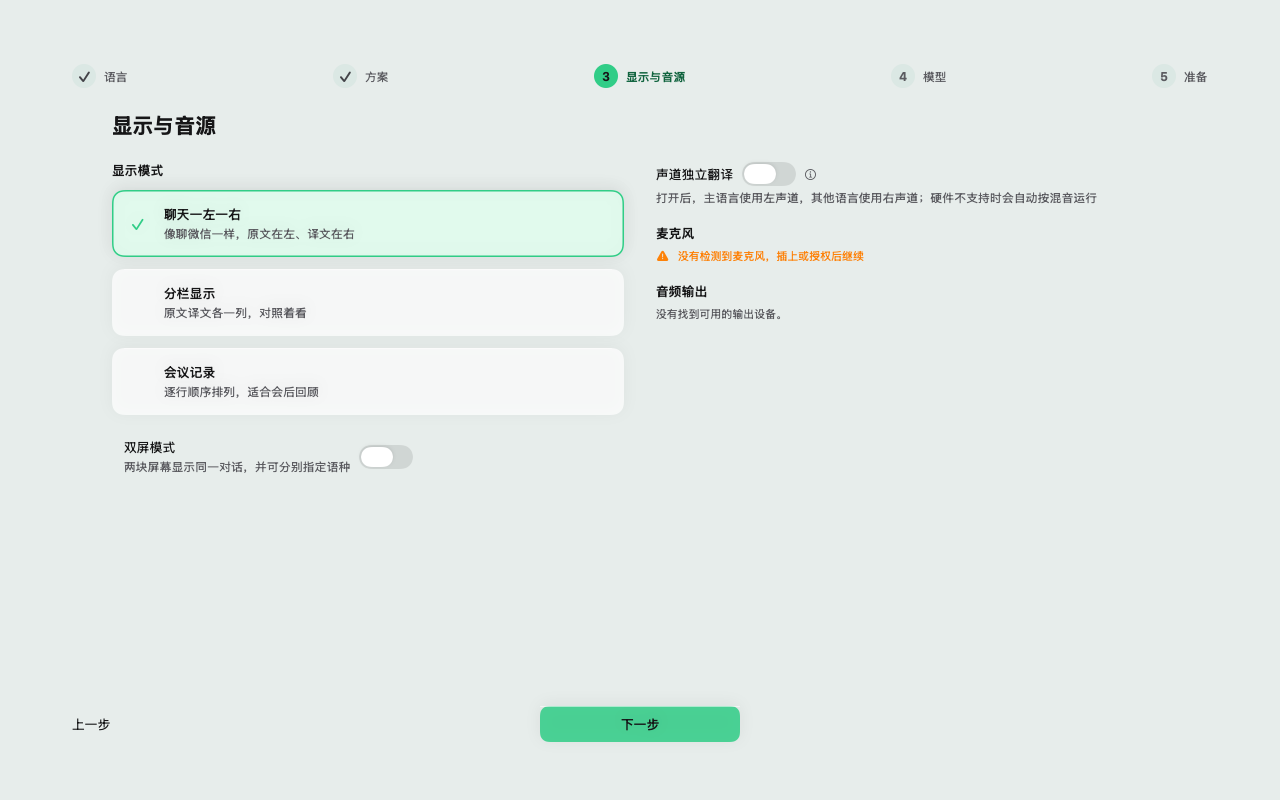
Turn on split-channel output and each language gets its own ear: left, right, or both. Two people share one pair of headphones and each hears only what is meant for them — and because the two ears are genuinely separate lanes, both translations can be read at the same time instead of queueing behind each other. With exactly two target languages the left/right split is the default; with any other number everything starts in both ears until you say otherwise.
Built-in, USB, virtual, or your iPhone over Continuity — inputs are listed in the toolbar with a live level meter next to them, so you confirm the room mic is the one being heard before anyone starts talking rather than after. The output device is chosen in the same place.
Set a second language for the conversation and completed turns are attributed to one speaker or the other by the language they were spoken in. Two people sitting at the same laptop end up with a transcript that keeps them apart, without a second microphone and without asking anyone to press a button before they talk.
Three layouts
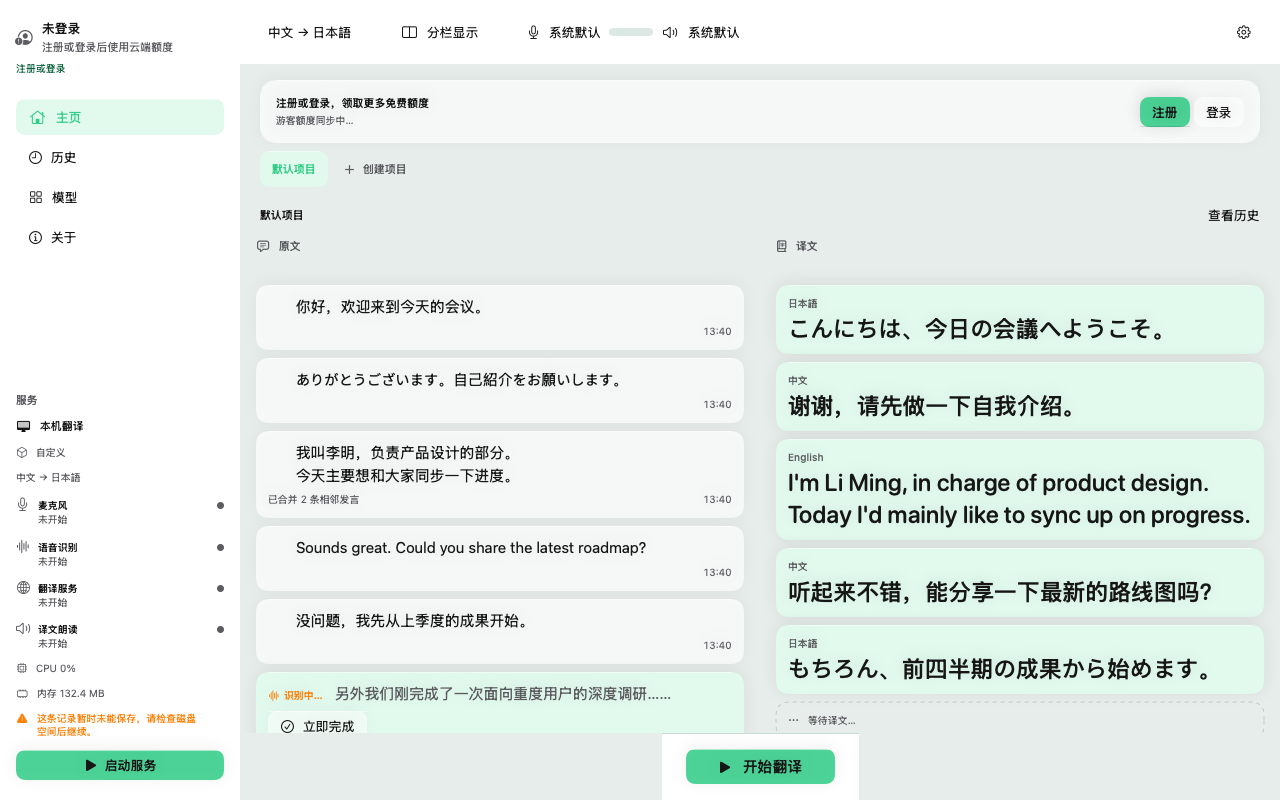
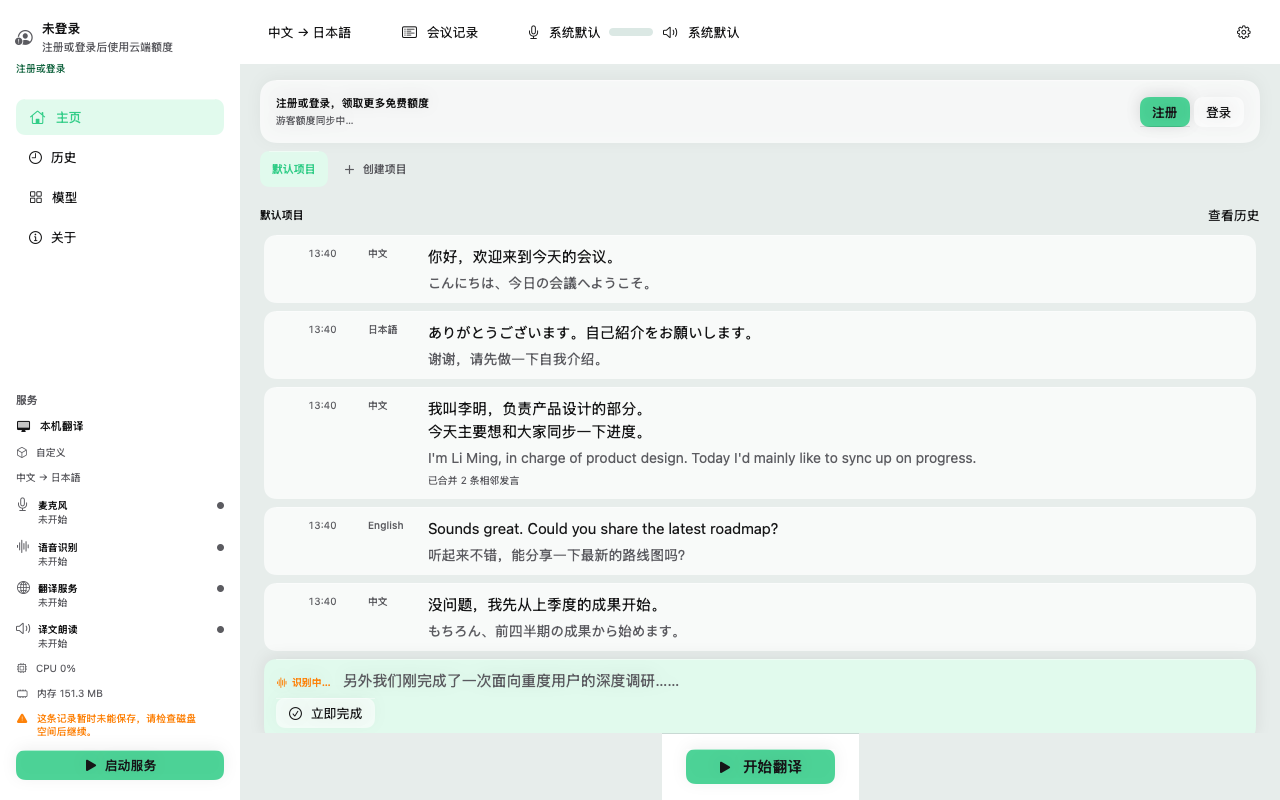
Following a live conversation, checking a translation against the original, and reviewing a meeting afterwards are three different jobs. Switching between them is one keystroke — ⌘1, ⌘2, ⌘3 — and interrupts nothing.
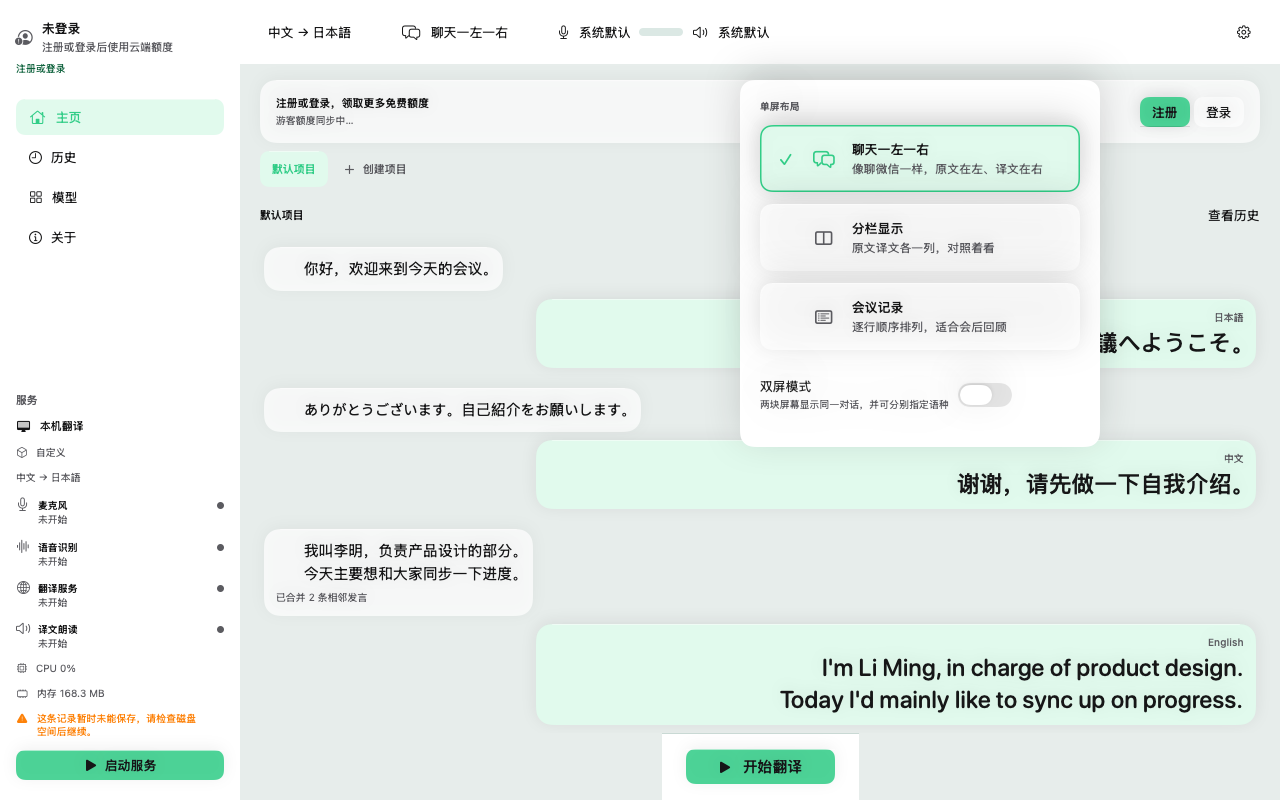
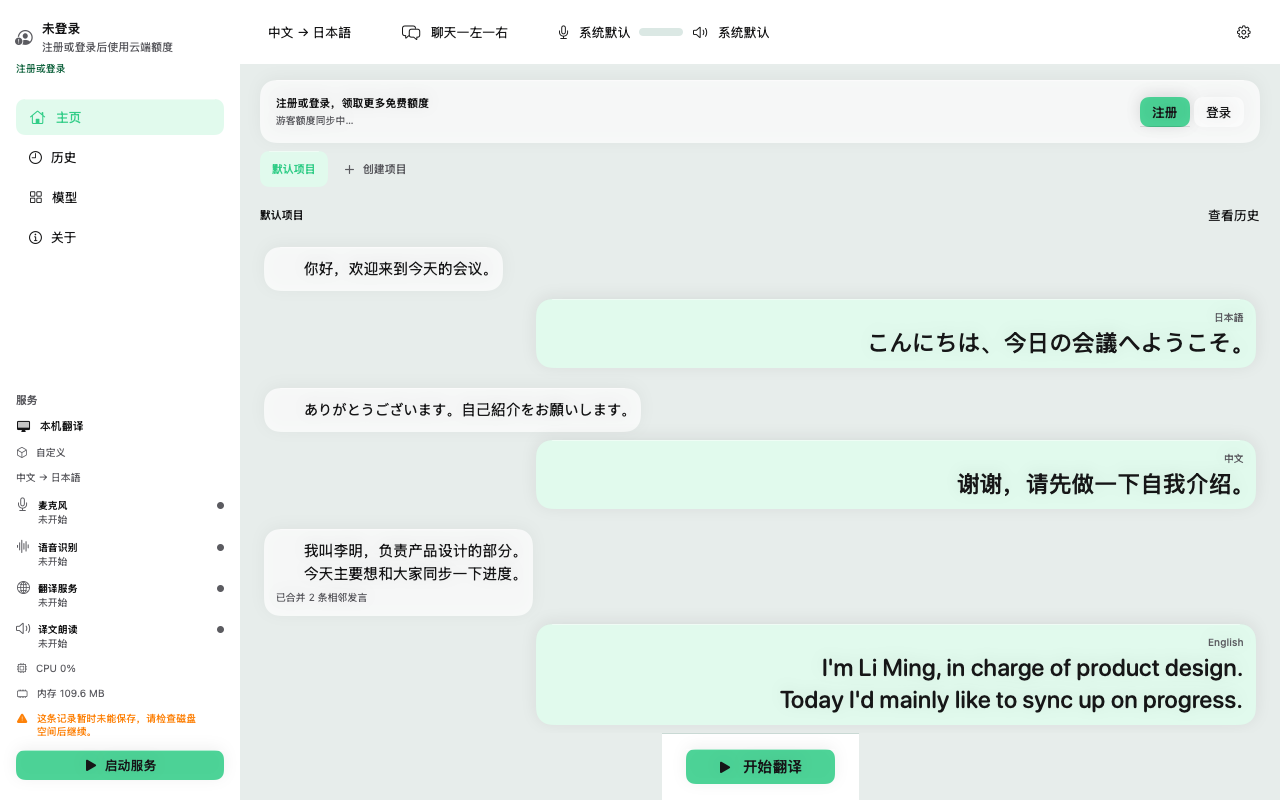
Laid out like a messaging app, with the two sides of the conversation opposed left and right and each turn labelled with its language. This is the one to use while people are actually talking, because your eye already knows how to read it.
Short consecutive utterances from the same speaker are merged into a single bubble, so a hesitant sentence does not arrive as five fragments.
Original and translation in two parallel columns, aligned turn for turn. Use it when you understand some of the other language and would rather check the translation than take it on faith. It is also the layout people learning a language keep coming back to.
Every line in the order it was said, original and translation together, as one continuous record. It reads like minutes while the meeting is still running, and it is the closest match to what you get when you export the session afterwards.
History & export
Every turn is written to a project as it happens, both languages, in order. Weeks later you can open that project and search it — originals and translations together — for the sentence you only half remember, and land on the exact turn it came from.
Projects keep separate conversations apart: one per client, one per recurring meeting, one per trip. Each project remembers its own languages, engine mode and layout, so opening last month's client project puts you back in exactly the setup that worked.
Got a name wrong? Turns can be corrected, merged or split after the fact. An edit is saved to the history only — it never quietly re-runs the translation behind your back.
Export the current conversation, everything in the project, or just the sessions you selected. Records stay on this Mac and are never uploaded — making a file uploads nothing.
Terminology & context
Product names, people's names, internal jargon, part numbers — the terms a general model has never seen are the ones a meeting turns on.
Give SyncTrans a term, a fixed rendering for every language you have enabled, and an optional note — "person's name, do not translate" is the one people write most. Those words then come out the same way for the whole conversation instead of being reinvented on every turn. It is the difference between a transcript a colleague can act on and one they have to decode.
Each turn is translated with the previous ones in view — you choose how many, from none up to a dozen, with three the recommended setting. That is what keeps pronouns attached to the right person and lets a one-word answer like "yes" land against the question it belongs to. Translating one sentence at a time in isolation is where live interpreting usually falls apart.
Live translation is a trade: wait longer and the sentence comes out better, answer sooner and the conversation stays alive. SyncTrans puts that preference in front of you instead of choosing on your behalf, so a fast-moving standup and a careful legal consultation can each be set up the way they actually need.
Languages
Arabic, Chinese, English, French, German, Hindi, Indonesian, Italian, Japanese, Korean, Portuguese, Russian, Spanish, Thai and Vietnamese. Pick one language you are speaking and up to seven the room needs to hear, and every one of them gets its own translation — and, if you want, its own voice and its own ear.
The app itself is localized too. An interface for people who do not share a language has no business being English-only, so setup, settings and error messages all ship in seven languages and follow whatever your Mac is already set to.
Which language pairs are available depends on the engine mode and the models you choose; the pickers only ever offer combinations that can actually be recognized and translated.
Version 1.0.0 for macOS
Download .DMGmacOS 14+ · Apple Silicon · Direct download
The things people want to know before they download it.
Yes. In on-device mode, speech recognition, translation and read-aloud all run locally on your Mac on models you download once, so translation keeps working with no network at all. The models themselves are downloaded over the internet the first time, and on-device mode needs an Apple Silicon Mac with enough memory.
It depends on the engine mode you choose. In on-device mode nothing about the conversation leaves your Mac. In cloud mode audio is processed in real time, and the service keeps usage records for billing rather than the source text, the translated text or the audio. If you connect your own AI services, content goes only to the services you chose. In every mode the transcript history is stored on your Mac and is never uploaded.
Fifteen conversation languages: Arabic, Chinese, English, French, German, Hindi, Indonesian, Italian, Japanese, Korean, Portuguese, Russian, Spanish, Thai and Vietnamese. You can have up to seven target languages running at once. The app interface itself is localized in English, Chinese, Japanese, Spanish, French, Korean and Ukrainian.
A Mac running macOS 14 Sonoma or later, plus a microphone. On-device mode additionally needs an Apple Silicon Mac (M1 or newer) with about 16 GB of memory and 12 GB of free disk space for the lightweight model set — the app checks your machine and tells you which sets it can run before anything is downloaded.
Yes. Dual-screen mode opens a second window for another language that you move to a second display, and split-channel output sends one language to the left headphone channel and another to the right — so one pair of headphones can be shared between two people. Two languages can also be attributed to two speakers on a single microphone.
Yes. Every turn is saved to a project as it happens and stays searchable across both originals and translations. A conversation, a whole project, or a selection of sessions can be exported as plain text, as parallel Markdown, or as timed SRT subtitles.
Yes. Translation can be connected to OpenAI, Claude, Gemini or any compatible service, including one you host yourself. Read-aloud can use your own speech service too, and your API keys are kept in the macOS Keychain rather than in a settings file.
Something not answered here? Ask us directly →